Installing Gentoo Linux: A Complete Guide
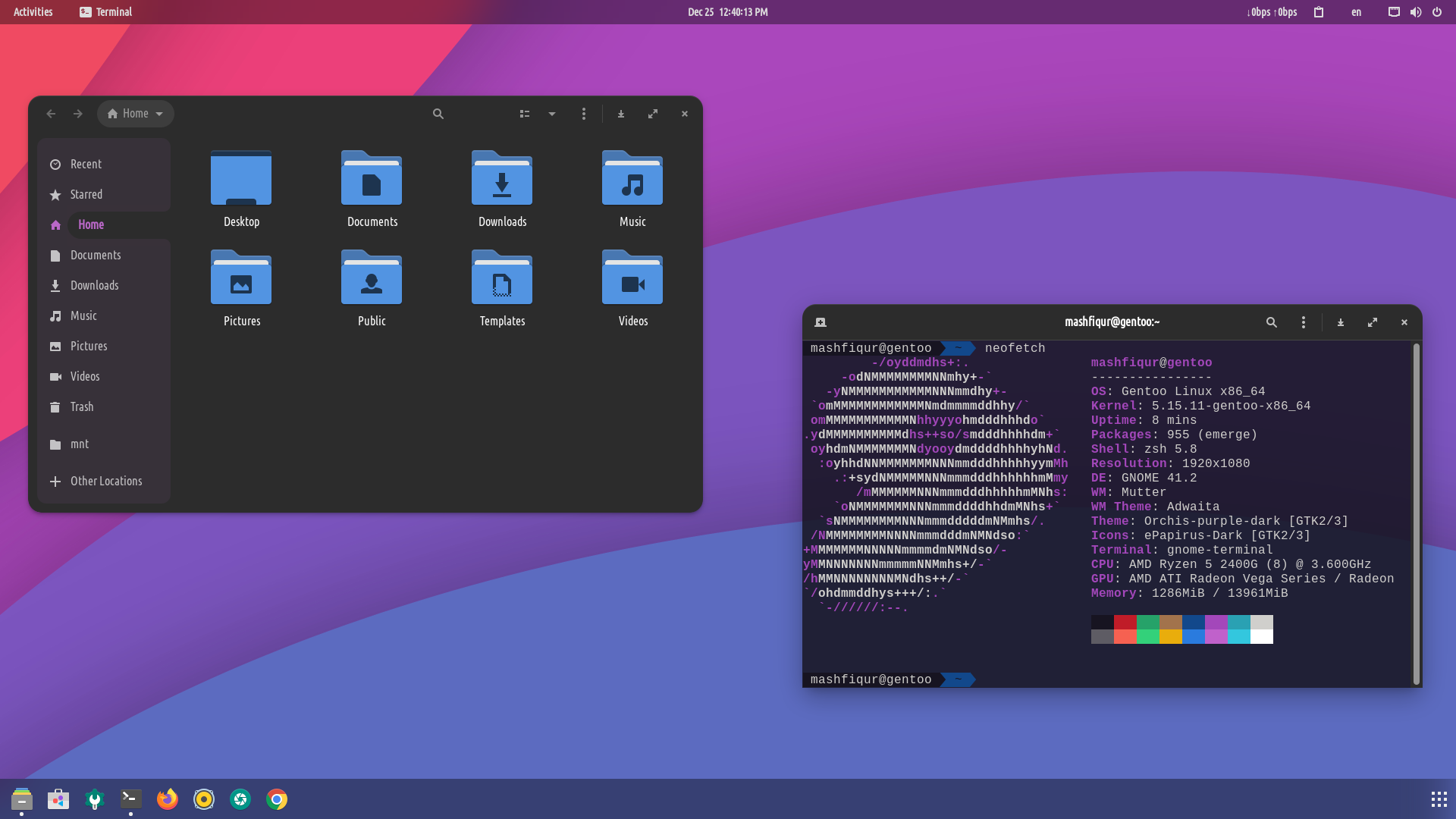
Gentoo Linux is a highly flexible, source-based Linux distribution known for its extreme configurability and performance optimization capabilities. Unlike binary distributions that provide pre-compiled packages, Gentoo compiles software directly on your machine, allowing for system-wide optimization tailored to your specific hardware. This guide will walk you through a complete Gentoo installation, from the initial setup to a working Hyprland desktop environment.
Why Install Gentoo?
Before diving into the installation process, it's worth understanding what makes Gentoo unique. Gentoo's USE flag system allows you to enable or disable features at compile time, resulting in a lean system with only the functionality you need. The distribution follows a rolling release model, meaning you'll always have access to the latest software versions. While the installation process is more involved than user-friendly distributions like Ubuntu or Fedora, the knowledge gained and the resulting system's performance make it worthwhile for those willing to invest the time.
Prerequisites
This guide assumes you're installing Gentoo on a system with UEFI firmware. You'll need:
- A stable wired internet connection (Ethernet)
- Basic familiarity with the Linux command line
- Several hours of time (compilation can take a while)
- The official Gentoo installation media
Throughout this guide, I'll reference the Official Gentoo AMD64 Handbook, which serves as the authoritative source for Gentoo installation.
1. Initial Setup and Partitioning
After booting from the Gentoo installation media with your Ethernet cable connected, verify your internet connectivity is working. The installation media should configure networking automatically via DHCP.
First, verify the system date is correct:
$ date
If the date is incorrect, synchronize it:
$ chronyd -q
Next, examine your current disk layout:
$ lsblk
Now partition your disk using cfdisk. Replace /dev/sdX with your actual disk identifier:
$ cfdisk /dev/sdX
Create three partitions:
- 1GB - EFI System
- RAM size - Linux Swap (match your RAM amount)
- Remaining space - Linux Filesystem
After partitioning, format each partition appropriately:
$ mkfs.vfat -F 32 /dev/sdX1
$ mkfs.ext4 /dev/sdX3
$ mkswap /dev/sdX2
$ swapon /dev/sdX2
2. Mounting and Extracting the Stage Tarball
Create mount points and mount your partitions:
$ mkdir --parents /mnt/gentoo
$ mkdir --parents /mnt/gentoo/efi
$ mount /dev/sdX3 /mnt/gentoo
$ cd /mnt/gentoo
Download the Stage 3 tarball using the text-based browser:
$ links https://www.gentoo.org/downloads/mirrors/
Navigate to the downloads tab and download the appropriate Stage 3 OpenRC tarball for your architecture. Then extract it:
$ tar xpvf stage3-*.tar.xz --xattrs-include='*.*' --numeric-owner
3. Configuring Portage
Portage is Gentoo's package management system. The configuration in /etc/portage/make.conf controls how packages are compiled. Edit this file:
$ nano /mnt/gentoo/etc/portage/make.conf
Add these optimization settings:
COMMON_FLAGS="-march=native -O2 -pipe"
MAKEOPTS="-j8 -l10"  # Adjust based on your CPU threads
USE="-systemd -gnome -kde wayland X dbus elogind pulseaudio pipewire"
ACCEPT_LICENSE="*"
VIDEO_CARDS="amdgpu radeonsi"  # Adjust for your GPU
The -march=native flag tells GCC to optimize for your specific CPU architecture. The MAKEOPTS value should be set to your number of CPU threads with the load average slightly higher. The USE flags define global features you want enabled or disabled across all packages.
4. Chrooting into the New Environment
Before entering the new system, set up the necessary mounts:
$ cp --dereference /etc/resolv.conf /mnt/gentoo/etc/
$ mount --types proc /proc /mnt/gentoo/proc
$ mount --rbind /sys /mnt/gentoo/sys
$ mount --make-rslave /mnt/gentoo/sys
$ mount --rbind /dev /mnt/gentoo/dev
$ mount --make-rslave /mnt/gentoo/dev
$ mount --bind /run /mnt/gentoo/run
$ mount --make-slave /mnt/gentoo/run
Now chroot into the new environment:
$ chroot /mnt/gentoo /bin/bash
$ source /etc/profile
$ export PS1="(chroot) ${PS1}"
Mount the EFI partition:
$ mkdir /efi
$ mount /dev/sdX1 /efi
5. Installing the Base System
Sync the Portage tree and select mirrors:
$ emerge-webrsync
$ emerge --ask --verbose --oneshot app-portage/mirrorselect
$ mirrorselect -i -o >> /etc/portage/make.conf
Select your system profile. This determines default USE flags and package versions:
$ eselect profile list
$ eselect profile set 23  # Verify the number matches your desired profile
Update the system with your new settings:
$ emerge --ask --verbose --update --deep --newuse @world
$ emerge --ask --depclean
6. Configuring Localization
Set your timezone:
$ echo "America/Los_Angeles" > /etc/timezone
$ emerge --config sys-libs/timezone-data
Configure your locales by editing /etc/locale.gen:
$ nano /etc/locale.gen
Uncomment en_US ISO-8859-1 and en_US.UTF-8 UTF-8, then generate the locales:
$ locale-gen
$ eselect locale list
$ eselect locale set 6  # Select en_US.utf8
$ env-update && source /etc/profile && export PS1="(chroot) ${PS1}"
7. Installing the Kernel
Install firmware and kernel using the binary kernel approach for simplicity:
$ emerge --ask sys-kernel/linux-firmware
$ nano /etc/portage/package.use/installkernel
Add this line to enable dracut:
sys-kernel/installkernel dracut
Install the binary kernel:
$ emerge --ask sys-kernel/gentoo-kernel-bin
$ emerge --depclean
8. Configuring Fstab
Generate the fstab file using genfstab. First, exit the chroot:
$ exit
Download and run genfstab:
$ cd
$ wget https://raw.githubusercontent.com/glacion/genfstab/master/genfstab
$ chmod +x genfstab
$ ./genfstab /mnt/gentoo > /mnt/gentoo/etc/fstab
Re-enter the chroot:
$ chroot /mnt/gentoo /bin/bash
$ source /etc/profile
$ export PS1="(chroot) ${PS1}"
9. Network Configuration
Set your hostname:
$ echo gentoo-machine > /etc/hostname
Install and configure networking:
$ emerge --ask net-misc/dhcpcd netifrc
$ rc-update add dhcpcd default
$ rc-service dhcpcd start
Configure your network adapter:
$ nano /etc/conf.d/net
Add the following, replacing eth0 with your network adapter name:
config_eth0="dhcp"
Create the network service and add it to the default runlevel:
$ cd /etc/init.d
$ ln -s net.lo net.eth0
$ rc-update add net.eth0 default
10. Finalizing the Base Installation
Set the root password:
$ passwd
Install essential system tools:
$ emerge --ask app-shells/bash-completion net-misc/chrony sys-block/io-scheduler-udev-rules
$ rc-update add chronyd default
Install and configure GRUB bootloader:
$ echo 'GRUB_PLATFORMS="efi-64"' >> /etc/portage/make.conf
$ emerge --ask sys-boot/grub
$ grub-install --target=x86_64-efi --efi-directory=/efi
$ grub-mkconfig -o /boot/grub/grub.cfg
Exit the chroot and reboot:
$ exit
$ umount -l /mnt/gentoo/dev{/shm,/pts,}
$ umount -R /mnt/gentoo
$ reboot
11. Setting Up Your User Account
After rebooting into your new Gentoo system, create a user account:
$ useradd -m -G users,wheel,audio -s /bin/bash username
$ passwd username
Configure sudo access:
$ visudo
Uncomment the line that allows users in the wheel group to execute any command. Then disable root login:
$ passwd -dl root
12. Installing Hyprland Desktop Environment
For those wanting a modern Wayland-based tiling window manager, Hyprland is an excellent choice. First, install Neovim for easier editing:
$ emerge --quiet neovim
Configure package USE flags:
$ nvim /etc/portage/package.use
Add the following USE flag configurations:
dev-libs/wayland X
dev-libs/wlroots X
gui-wm/hyprland X
media-libs/mesa wayland xa xvmc
sys-auth/elogind -systemd
sys-apps/dbus elogind
x11-base/xwayland glamor
x11-drivers/xf86-input-libinput udev
media-video/pipewire alsa bluetooth dbus -jack -systemd
media-video/pipewire-pulse -jack -systemd
media-sound/pulseaudio alsa bluetooth dbus -jack -systemd
net-misc/networkmanager consolekit dhclient elogind wifi
gui-apps/grim
gui-apps/slurp
gui-apps/swaylock
Install all necessary packages:
$ sudo emerge dev-libs/wayland dev-libs/wlroots gui-wm/hyprland media-libs/mesa \
  sys-auth/elogind sys-apps/dbus x11-base/xwayland x11-drivers/xf86-input-libinput \
  media-video/pipewire media-video/pipewire-pulse net-misc/networkmanager \
  gui-apps/grim gui-apps/slurp gui-apps/swaylock media-fonts/noto x11-themes/adwaita-icon-theme
If you encounter errors, run etc-update and retry the emerge command.
Set up the runtime directory and start essential services:
$ mkdir /tmp/hypr && export XDG_RUNTIME_DIR=/tmp/hypr
$ sudo chmod 1777 /tmp/hypr
$ sudo rc-service elogind start && sudo rc-update add elogind default
$ sudo rc-service dbus start && sudo rc-update add dbus default
$ sudo rc-service NetworkManager start && sudo rc-update add NetworkManager default
Launch Hyprland:
$ Hyprland
Maintaining Your Gentoo System
One of Gentoo's strengths is its rolling release model, but this requires regular maintenance. When you add or modify USE flags, refresh your installed packages:
$ sudo emerge --sync
$ sudo emerge --update --newuse --deep --quiet @world
$ sudo emerge --depclean
$ sudo revdep-rebuild
$ sudo etc-update
This workflow ensures all packages are rebuilt with new USE flags and removes any orphaned dependencies.
Conclusion
Congratulations on installing Gentoo Linux! While the process is more involved than other distributions, you now have a system optimized specifically for your hardware with only the features you need. The knowledge gained through this installation process provides deep insight into how Linux systems work at a fundamental level. From here, you can continue customizing your system, experimenting with different USE flags, and fine-tuning performance to create your ideal computing environment.
Whether you're running Gentoo for the performance benefits, the learning experience, or the unparalleled control it provides, you're now part of a community that values technical excellence and system optimization. Enjoy your new Gentoo system!